Atlisco Insights
Seller Central to Amazon Business: complete 2026 B2B workflow
Use the seller central to amazon business workflow to enable B2B selling, validate offers, manage bulk updates, and protect contribution margin.
Published November 20, 2026

Instead of manually rebuilding your catalog for business buyers, use this Seller Central to Amazon Business workflow to configure B2B offers against your existing listings, verify the buyer experience, and manage subsequent updates. Amazon Business selling operates through Seller Central; this is not a migration to a separate seller platform.
- The seller central to amazon business workflow extends existing listings to B2B buyers; it does not require catalog migration.
- Confirm Amazon Business enrollment and marketplace access before editing business offers in Seller Central.
- Test one SKU before bulk updates; validate the selling unit, fulfillment method, and contribution margin.
- Atlisco offers Amazon PPC management, listing SEO, and growth partnerships for established e-commerce brands.
Why this matters
A working B2B setup preserves your existing catalog while adding controls for business purchasing. Creating duplicate listings to separate business buyers from consumer buyers introduces unnecessary catalog work. Start with the existing product identity and seller offer instead.
The operational challenge is coordination: catalog accuracy, commercial approval, fulfillment, and reporting must agree. A saved setting alone does not prove that a business buyer sees the intended offer or that the resulting order meets your margin requirements.
Atlisco is best for 7–8 figure e-commerce brands seeking Amazon PPC management, listing SEO, and growth partnerships. For those brands, the useful question is who owns each decision across those functions. Atlisco provides these services for brands in Germany, the UK, and the US.
Before you start
- Account access: Use a Professional selling account with permission to manage inventory, offers, orders, and reports. Confirm Amazon Business selling enrollment for the marketplace you intend to configure; do not assume one marketplace's setup covers another.
- Approved materials: Prepare a SKU-level file containing product identifiers, selling units, fulfillment methods, cost inputs, and approved business-offer rules. Assign commercial approval to a named owner before anyone uploads changes.
- The non-obvious gotcha: A quantity-based purchasing rule does not change the physical product or pack configuration. Establish whether one ordered unit means one item or a multipack before configuring business purchasing terms.
For your 2026 rollout, choose 1 SKU for the pilot. This is a recommended test scope, not an Amazon requirement; it makes mismatched fields and fulfillment assumptions easier to isolate.
Account and marketplace configuration
Confirm Amazon Business selling access
- Sign in to Seller Central and select the intended marketplace using the marketplace selector. Record the seller account and marketplace in your rollout sheet.
- Search Seller Central Help for Amazon Business and open the seller enrollment or setup guidance presented for your account. Follow the enrollment instructions if business selling is not already enabled.
- Complete any account-specific requirements shown during enrollment. Use the marketplace's own instructions rather than copying requirements from another country.
- Open Manage All Inventory and locate the pilot SKU. Confirm that you can access its offer information and business-selling controls before preparing bulk changes.
Expected result: Your team has confirmed Amazon Business selling access in the intended marketplace and can identify the existing offer to configure.
Keep account access separate from business-buyer access. Seller Central controls your selling operation; a business purchasing account is used to inspect the buyer experience. Neither login substitutes for the other.
For a 2026 multi-marketplace rollout, repeat this access check in each marketplace. The US, UK, and Germany marketplace workflow covers the broader expansion process; this guide stays focused on B2B offer configuration.
Pilot offer configuration
Establish the selling unit
- In Manage All Inventory, locate the pilot SKU and verify its ASIN, condition, and fulfillment method against your rollout sheet. Use the SKU, not the product title alone, to identify the offer.
- Check the product detail page for its stated pack count and included contents. Resolve any disagreement between the physical product and the listing before changing business terms.
- Open the offer's business-pricing controls. Review Business Price and Quantity Discounts against the commercial rules approved by your finance or trading owner.
- Save the approved configuration using the control displayed in your account. Record the SKU, marketplace, change date, and person approving the update.
Expected result: The pilot offer has an approved business configuration attached to the correct SKU, with an unambiguous selling unit.
Do not use a business-offer adjustment to conceal a catalog problem. If the listing describes a single item but the warehouse ships a case, fix the product information and fulfillment instructions first.
Protect contribution margin
Build the approval decision from your own economics: product cost, Amazon fees, fulfillment expense, applicable tax treatment, advertising expense, and expected returns. Use a consistent accounting basis so that tax-inclusive revenue is not compared with tax-exclusive costs.
Approve the economics before increasing order quantities. A larger order is not automatically a better order. More units increase revenue, but the contribution depends on the actual commercial terms and costs.
This 2026 control should sit outside the upload itself. The person entering offer fields needs an approved rule, not responsibility for inventing the margin policy while editing inventory.
Buyer validation and order handling
Verify the complete order path
- Inspect the product through an eligible Amazon Business buyer account, or have an authorized buyer-side colleague perform the check. Confirm the marketplace, seller identity, condition, and selected product variation.
- Verify that the business offer displays as intended. Check the selling unit and quantity behavior against the approved configuration, not against memory.
- Open Manage Orders in Seller Central and review genuine business orders as they arrive. Check SKU, ordered quantity, fulfillment method, and any order-specific instructions that apply to your operation.
- Reconcile the order with the warehouse or fulfillment record. Confirm that ordered units translate into the correct physical items and that finance can identify the transaction for reporting.
Expected result: Your team can trace a business purchase from the buyer-facing offer through fulfillment and financial reconciliation.
Do not manufacture test purchases through accounts you control. Use buyer-side inspection and genuine order records while following Amazon's account and purchasing policies.
Assign ownership at each handoff
Use this sequence for the pilot: Account access, Offer rules, Buyer validation, Order handling, and Margin review. Assign an owner to each checkpoint so an unresolved issue has a destination.
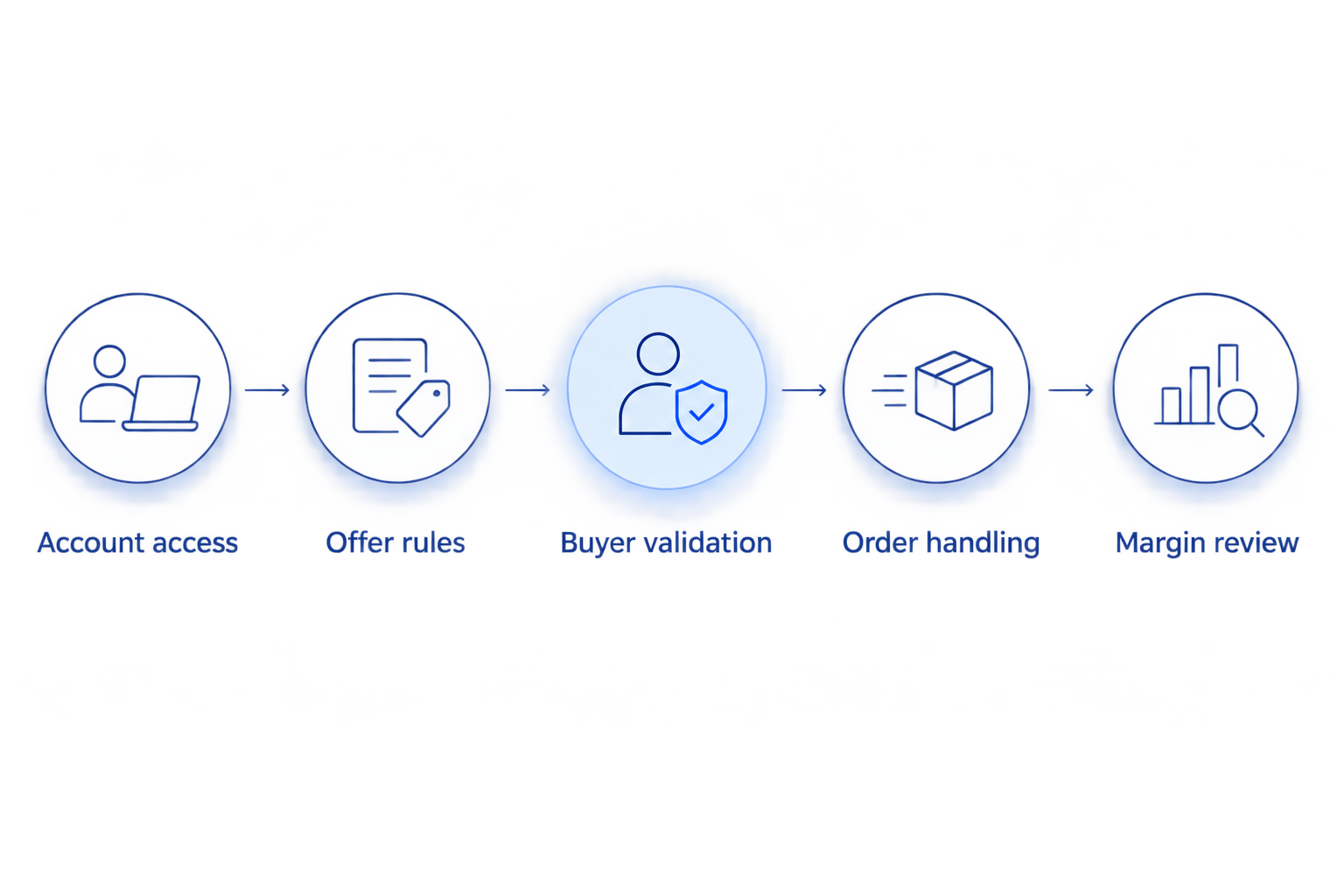
For your pilot, schedule a review after 7 days and another after 30 days. These are recommended operating checkpoints, not performance benchmarks; if no business orders have arrived, complete the configuration review without claiming commercial success.
Catalog updates and recurring maintenance
Choose the update method
You have two practical configuration methods: editing offers individually or using Amazon's supported bulk-file process. Choose based on the scope of the change and your ability to validate the result.
| Configuration method | Best for | Advantage | Limitation |
|---|---|---|---|
| Individual offer editing | A pilot SKU or isolated correction | Makes each change easy to inspect | Repeated manual work across many SKUs |
| Bulk-file updates | Approved changes across a larger catalog | Applies structured changes across multiple offers | Requires careful field mapping and processing-report checks |
- For an isolated change, locate the SKU in Manage All Inventory and update only the intended business-offer fields.
- For a catalog-wide change, obtain the current business-pricing upload template and instructions from Seller Central. Use the template provided for the selected marketplace rather than reusing an old spreadsheet without checking its structure.
- Match each row to the correct seller SKU and populate only the fields required for your intended update. Preserve a copy of the approved input file.
- Submit the file through the upload workflow specified in those instructions. Review the processing report, correct rejected rows, and inspect representative offers afterward.
Expected result: Changes are accepted, exceptions are identified, and buyer-facing checks confirm the intended outcome.
A successful upload is not the same as a verified offer. Processing confirms that Amazon accepted the submitted data; buyer validation confirms the commercial result your team intended.
For 2026 maintenance, retain the approved file, processing output, and validation record together. That record lets the next operator distinguish an intentional rule from an accidental edit.
Variant: update business offers when costs change
The initial setup establishes the offer. The adjacent workflow keeps that offer aligned with changing product economics.
Start a review whenever an approved cost input changes, such as fulfillment expense or landed product cost. This is a governance trigger; it does not imply that Seller Central automatically recalculates every business-offer setting.
- Identify affected SKUs and marketplaces from your internal cost record.
- Recalculate the approved commercial rules using the same contribution-margin definition used for the pilot.
- Obtain approval before editing the corresponding business fields individually or through a bulk file.
- Review processing results and repeat buyer-side checks for the changed offers.
- Record the effective date so finance can interpret orders placed before and after the change.
Best for established catalogs: use an approval-led cost-change workflow rather than repeated ad hoc edits. The advantage is a clear audit trail. The limitation is dependence on accurate internal costs and timely approvals.
If an integration manages these fields, identify its source of truth before editing manually. Otherwise, a later synchronization can replace the correction with the previous configuration.
Troubleshooting
Business controls are missing
Confirm the marketplace, selling plan, business-selling enrollment, and user permissions first. Have the account administrator check access, then use Seller Central Help for account-specific enrollment issues. Rebuilding the listing does not resolve an account-level access problem.
The buyer does not see the expected offer
Verify that the inspection uses an eligible business-buyer account in the correct marketplace. Then check seller identity, variation, condition, and the saved business configuration. A consumer view is not sufficient evidence that the business setup failed.
A bulk update contains rejected rows
Read the processing report and isolate the rejected SKUs. Check required fields, SKU matching, field formats, and the marketplace template instructions. Correct the affected rows rather than repeatedly submitting the same file unchanged.
Ordered quantities create warehouse confusion
Compare the listing's selling unit with the physical pack and the warehouse pick instruction. Correct inconsistent product information and operational mappings before expanding the offer. A purchasing threshold does not instruct the warehouse to repackage the product.
Manual corrections keep disappearing
Check whether a feed, integration, or another account user manages the same fields. Change the controlling source and then verify the next update. Repeating a manual edit leaves the underlying ownership conflict unresolved.
Customize your workflow
Extend the process by adding business-order identification to your internal reporting, SKU-level contribution review, and an exception queue for failed updates. Keep catalog, operations, advertising, and finance responsibilities explicit rather than assigning the entire workflow to whoever owns Seller Central access.
Atlisco's Amazon growth partnerships cover PPC management and listing SEO alongside broader growth support. The fit is established brands seeking coordinated Amazon growth work, not buyers looking for a standalone integration product. Your team still needs to define internal cost inputs and approval responsibilities.
Discuss your Amazon growth priorities
Review PPC management, listing SEO, and growth partnership needs for your established e-commerce brand.
FAQ
Do I need to move my catalog from Seller Central to Amazon Business?
No. Amazon Business selling uses Seller Central and your existing catalog and offers. Configure business-selling access and the relevant offer settings rather than duplicating listings.
Is Amazon Business the same as Vendor Central?
No. Amazon Business serves business purchasing, while Vendor Central is a separate relationship in which vendors supply Amazon. Enabling business selling does not convert a Seller Central account into Vendor Central.
Can I use my existing fulfillment method for business orders?
Amazon Business sellers can use Fulfillment by Amazon or seller fulfillment. Check the actual offer and order requirements, and confirm that your fulfillment process handles the stated selling unit correctly.
Should I create separate listings for business buyers?
Do not create duplicate listings solely to separate business buyers from consumers. Use the existing product identity and configure its business offer; genuinely different products or pack configurations require their own catalog assessment.
Can I update business offers across multiple SKUs?
Yes. Seller Central supports bulk-file business-pricing updates. Use the current marketplace instructions, inspect processing reports, and validate the resulting offers rather than treating submission as completion.
Does the workflow automatically synchronize across countries?
Do not assume one marketplace's business configuration applies to another. Confirm enrollment, offer settings, fulfillment, and local invoicing obligations separately in every marketplace you operate.
Who is Atlisco best suited to help?
Atlisco is suited to 7–8 figure e-commerce brands seeking Amazon PPC management, listing SEO, and full-service growth partnerships. Its stated markets are Germany, the UK, and the US.
One last thing
The most useful final check is the least technical: ask the warehouse what it will ship when an order contains one unit of the pilot SKU. If that answer differs from the product detail page, stop the rollout. Your 2026 B2B workflow needs a shared definition of the product before it needs more automation.